

When Migrations Run Into Issues
I’ve been involved in a lot of Tenant to Tenant migrations in my career and they are never easy. As more tools get added to Microsoft 365 each year, more complexity gets added. There are some awesome migration tools out there to help administrators manage that long weekend cutover or the phased, multi-week migration. The tools help, but there is so much involved in a migration like this, it’s good to build up a set of your own custom tools and scripts to support when things go wrong.
I say “when” things go wrong because with the best planning in the world, the level of complexity in these projects often means that there will be something that comes up. I’ve done enough migrations to know you need to be prepared for issues to occur and remediate quickly to maintain timelines.
Teams Calendar Rewrites
One layer of complexity we often have to deal with is Teams meetings. When we move Exchange Online Mailboxes, we also move calendar items. Many of these calendar items will have Teams meetings and these Teams meetings will have been created in the tenant you’re migrating away from. Once identities have been migrated with all their data, you then have an issue that all these meetings belong to the old tenant. When not managed, this can end up leaving people in the lobby of their own meetings after they’ve been migrated.
I remember guidance a long time ago to get users to cancel and recreated each meeting – this was less than ideal. Nowadays, migration vendors have build remediations for this into their platforms, essentially performing the cancellation and recreation of meetings on behalf of the users during the migration process. With the Graph API available, administrators could even build out their own solution for this rewrite process, although I don’t recommend performing a Tenant to Tenant migration without a migration tool, nobody needs that level of pain!
So what happens when this process fails? I’ve seen it a few times now where due to human error, or technical problems, the rewite functionality doesn’t work as expected. If an error happens on a data sync you just need to rerun it, but if it happens during the rewrite, you might want to find out what state the process is in.
A Handy Script to Report Meeting Rewrite Status
I’ve been in this position a few times where either myself or one of my team has been running a migration project and either had issues with meeting rewrite (Spam filters can be a challenge – you need to make sure you’re mailflow is routed correctly). To help understand the problem in this scenario, I built a PowerShell script using the Microsoft Graph PowerShell SDK to report on the meetings in a mailbox and the Tenants they belong to.
Preparing the Script
The first thing to understand with planning this script is that we will need to report on many different mailboxes. To avoid needing to grant permissions to every mailbox we want to scan, it makes sense that the script uses Graph application permissions. This means we need an App Registration created in the tenant. Before doing this, make sure you have the latest Microsoft Graph PowerShell SDK module installed.
Microsoft provide a script to set this up here and I’ve posted similar examples in my Tenant to Tenant Migration Assessment. If you want to set it up manually, follow the below steps:
- Create a new Self-Signed Certificate
- Create a new App Registration
- Upload the certificate
- Add the Calendars.Read and CrossTenantInformation.ReadBasic.All application permissions to the app
- Consent to the permissions
Once you have an app you can authenticate with that contains the Calendar.Read permissions, you’re ready to start.
Building the Script
In this section I’ll walk through the steps and logic in the script. The first and most important piece is to connect to the Microsoft Graph using the SDK and the certificate we created earlier. To connect we need the following values:
- ClientID: This is the application ID of the App Registration you created
- TenantID: This is the tenant ID of your Entra tenant
- CertificateThumbprint: This is the thumbprint of the certificate you created and uploaded to the App Registration
With this information to hand, update and run the below code to connect to the Graph API.
$ClientID = <Your Client ID><br>$TenantID = <Your Tenant ID><br>$CertificateThumbprint = <Your Certificate Thumbprint><br><br>Connect-MgGraph -ClientID $ClientID -TenantId $TenantID -CertificateThumbprint $CertificateThumbprint
With the authentication piece done, next we want to find the mailbox we want to check. Rather than prompting each time to type the users email address or name, we can be a bit fancier and use “Out-GridView -Passthrough” to display a list of users and select from that list.
$User = get-mguser -All | Out-GridView -PassThru
This displays a window as shown in Figure 1 for the user to select the account they want to check.

Next we want to get all calendar items that meet any one the following criteria:
- Start after the current date/time
- Have a recurrance that ends after the current date/time
- Have a recurrance that doesn’t end
The below code will retrieve the calendar items we want. If you want to get all items regardless of dates, remove everthing after “-All”.
[array]$CalendarItems = Get-MgUserEvent -UserId $User.Id -All | ?{[datetime]$_.Start.DateTime -gt (Get-Date) -or $_.Recurrence.Range.EndDate -gt (Get-Date) -or $_.Recurrence.Range.Type -eq "NoEnd"}
This cmdlet returns all the events we are interested in, the next task is to check which ones have Teams links. To do this we can look at the body of the event item using the below code which searches for the Teams meeting join url in the body of each event and returns events only if this is present.
[array]$TeamsMeetings = $calendarItems | ?{$_.Body.Content -like "*https://teams.microsoft.com/l/meetup-join*"}
Now that we’ve filtered to just Teams meetings, the next step is to extract the tenant ID of the sender from each meeting link. We will put this into a loop eventually, but for now, we need to establish the logic for extracting the tenant ID. For this example, assume we have set the $meeting variable a single instance of a calendar event. We then remove any content before the “tenantid=” string and after the “&threadId=” string to leave us with just the tenant ID GUID.
$MeetingTenantID = (($meeting.Body.Content.tostring() -split 'tenantId=')[-1] -split "&threadId=")[0]
With the Tenant ID in hand, we call the “findTenantInformationByTenantId” endpoint to resolve it and get the details of the tenant. As a side note, as a partner this endpoint is one the most useful tools you can have to get tenant details.
$TenantDetails = (Invoke-MgGraphRequest -Method GET -Uri "https://graph.microsoft.com/beta/tenantRelationships/findTenantInformationByTenantId(tenantId='$MeetingTenantID')")
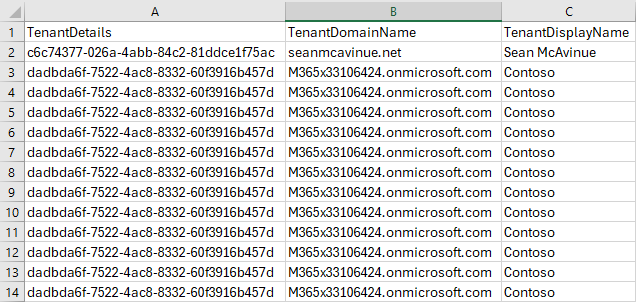
Finally, we add in the details we retreived to the meeting object and export it to CSV for review.
$Meeting | Add-Member -MemberType NoteProperty -Name TenantDetails -Value $TenantDetails.tenantId -Force
$Meeting | Add-Member -MemberType NoteProperty -Name TenantDomainName -Value $TenantDetails.defaultDomainName -Force
$Meeting | Add-Member -MemberType NoteProperty -Name TenantDisplayName -Value $TenantDetails.displayName -Force
$meeting | export-csv c:\temp\$($User.UserPrincipalName)_TeamsMeetings.csv -NoTypeInformation -Append
When it all comes together with a loop it looks something like this:
##Extract the meeting options URL from the body content
foreach($meeting in $TeamsMeetings){
    ##Remove everything before the URL
    $MeetingTenantID = (($meeting.Body.Content.tostring() -split 'tenantId=')[-1] -split "&threadId=")[0]
    $TenantDetails = (Invoke-MgGraphRequest -Method GET -Uri "https://graph.microsoft.com/beta/tenantRelationships/findTenantInformationByTenantId(tenantId='$MeetingTenantID')")
    $Meeting | Add-Member -MemberType NoteProperty -Name TenantDetails -Value $TenantDetails.tenantId -Force
    $Meeting | Add-Member -MemberType NoteProperty -Name TenantDomainName -Value $TenantDetails.defaultDomainName -Force
    $Meeting | Add-Member -MemberType NoteProperty -Name TenantDisplayName -Value $TenantDetails.displayName -Force
    $meeting | export-csv c:\temp\$($User.UserPrincipalName)_TeamsMeetings.csv -NoTypeInformation -Append

}
The CSV shows all details of the event but I’ve trimmed to just the pieces we added in Figure 2.
Summary
This script has been useful for me when performing migrations but also generally useful to have in your toolbox for a number of different use-cases. I’ve uploaded the full code to GitHub here but if you’re learning PowerShell and Microsoft Graph API / SDK, I recommend following on with the steps here to get an understanding of the process of creating scripts like this.
 Sean McAvinue