

Group and Site Support for Labelling Has Improved in Recent Years
A few years ago, I wrote about sensitivity labels being extended to protect Microsoft 365 Groups. At the time, there were some basic controls available to protet Microsoft 365 Groups. This feature has quietly gotten better over the years so now is a good time to revisit and look at why you should be labelling your Groups and Sites.
Sensitivity Labels are a feature of Microsoft Purview and act as a way to label content and enforce specific controls. The most common use of Sensitivity Labels is for labelling files within SharePoint Online, OneDrive and Microsoft Teams. When we talk about labelling Groups and Sites, we also have a variety of controls that labels enforce on their sites. In this article, I’ll explain how to get started labelling sites and each of the controls available.
Enabling the Feature
The first roadblock administrators come across with labelling Groups and Sites is that by default, you can’t create a group label, the functionality is greyed out in the GUI. Before you can create a label, you need to enable the feature in Microsoft Entra.
The Microsoft Documentation for this is a little confusing as the steps in the document only work if you already have a directory setting applied for Microsoft 365 Groups, such as controlling who can create them. If you don’t, the cmdlets will fail and you need to go to another article and follow the steps there.
I’ve included a short script below that combines the two into a single script:
Connect-MgGraph -Scopes "Directory.ReadWrite.All"

Try {
    $grpUnifiedSetting = Get-MgBetaDirectorySetting -Search DisplayName:"Group.Unified"
    $params = @{
        Values = @(
            @{
                Name  = "EnableMIPLabels"
                Value = "True"
            }
        )
    }

    Update-MgBetaDirectorySetting -DirectorySettingId $grpUnifiedSetting.Id -BodyParameter $params
    $Setting = Get-MgBetaDirectorySetting -DirectorySettingId $grpUnifiedSetting.Id
    $Setting.Values
}
catch {
    $TemplateId = (Get-MgBetaDirectorySettingTemplate | where { $_.DisplayName -eq "Group.Unified" }).Id
    $Template = Get-MgBetaDirectorySettingTemplate | where -Property Id -Value $TemplateId -EQ

    $params = @{
        templateId = "$TemplateId"
        values     = @(
            @{
                name  = "EnableMIPLabels"
                value = "True"
            }
        )
    }

    New-MgBetaDirectorySetting -BodyParameter $params

    $grpUnifiedSetting = Get-MgBetaDirectorySetting -Search DisplayName:"Group.Unified"

    $Setting = Get-MgBetaDirectorySetting -DirectorySettingId $grpUnifiedSetting.Id
    $Setting.Values

}

Connect-IPPSSession

Execute-AzureAdLabelSync
This script will try to get the existing directory settings template and update it, if there is no template already created, it falls back to creating a new one with the setting enabled. Finally, it connects using the Security and Compliance PowerShell Module to run Execute-AzureADLabelSync. This final step is required regardless of which starting point you are in. The ability to add labels generally kicks in after about an hour but may take longer in your tenant so give it a while before testing.
Group and Site Options
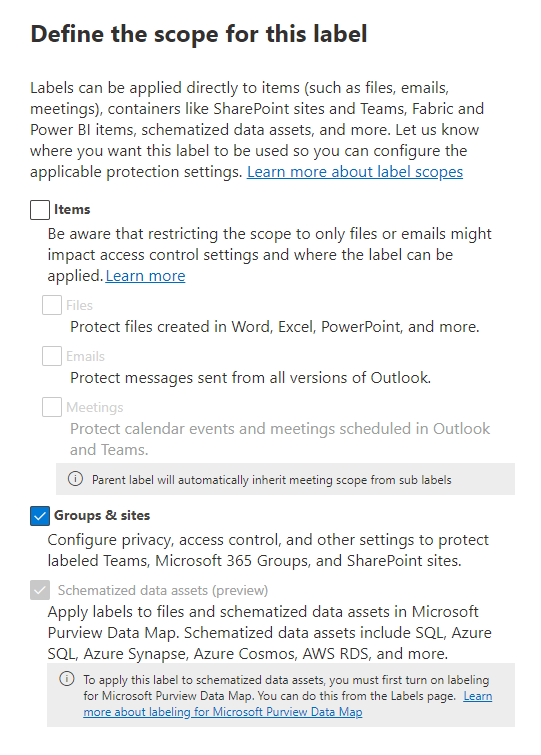
If the above steps completed successfully, you will no be able to select the “Groups and sites” option in the label scope when creating a new label (shown in Figure 1).
Moving on to the options available for Groups and sites, there are three areas where sensitivity labels can add control which are shown in Figure 2:
- Privacy and external user access
- External sharing and Conditional Access
- Private teams discoverability and channel settings
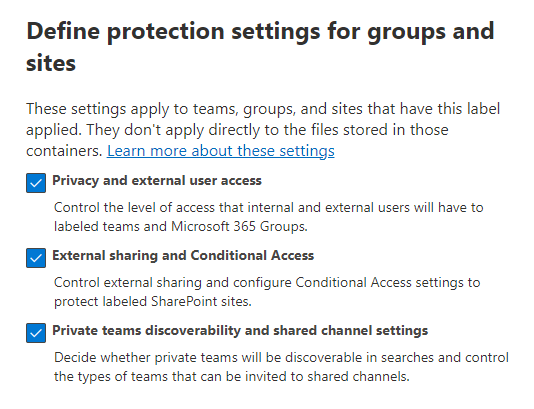
From this page you can choose one or more of the areas to enable. Let’s look at each one separatly.
Privacy and External User Access
On the first page we can set the privacy for the Group or site and the Guest user access settings shown in Figure 3.
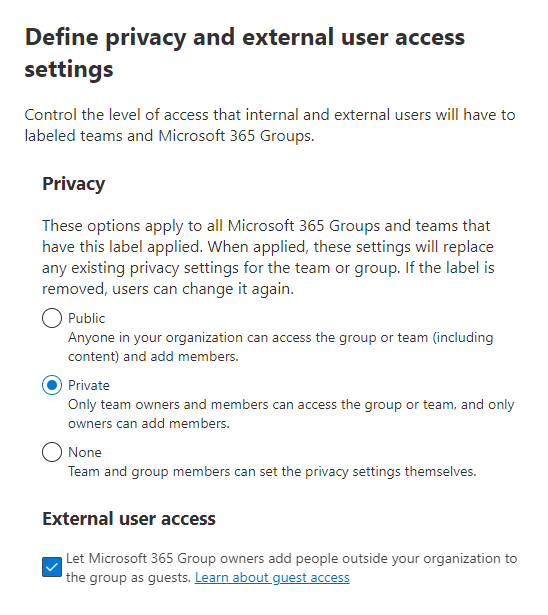
The Privacy setting refers to if the Group is made Public (i.e. anyone can access) or Private (members must be added by the owner). There are very few cases where a Group would be set to public so this would be Private in most cases. If you want to let the Group owners decide for themselves, set this to “None”.
The other option available “External user access” specifies if Guests can be added to the Group. This is a very useful setting when provisioning sensitive Groups where you don’t want external access. For these cases, this would be combined with the external sharing controls I cover next.
External Sharing and Conditional Access
On the “External Sharing and Conditional Access” page, we can control two aspects of the Group or Site. First, and probably most common is external sharing (Figure 4).
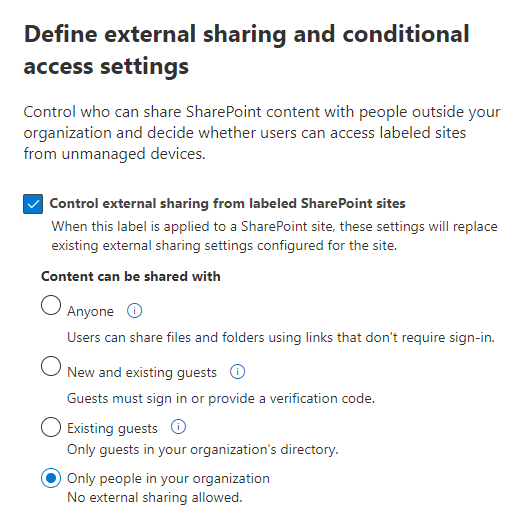
These settings might look familier as they are the same available sharing settings as you have in the SharePoint Online Admin Center for the entire tenant. For a very sensitive site, you will most likely be setting this to “only people in your organization” and combining it with the Guest access settings I mentioned previously.
Also on this page is the configureation around Conditional Access (Figure 5).
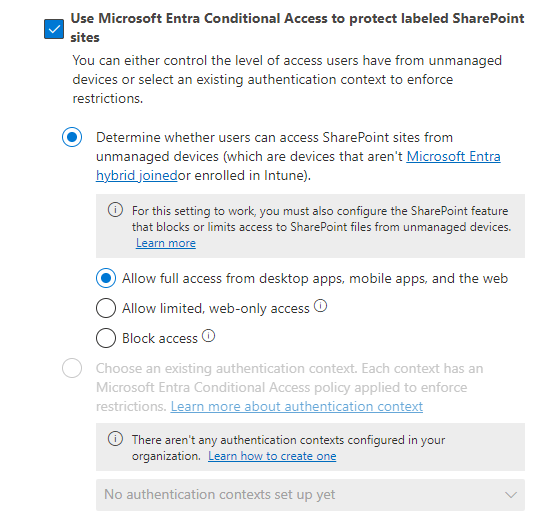
From here we can specify the Conditional Acess app control settings to limit access from unmanaged devices (devices that aren’t hybrid joined or Intune enrolled. We also have the option to set authentication contexts on our Groups and sites which I discussed in this recent article on using authentication contexts to block sensitive sites.
Private Teams Discoverability and Shared Channel Settings
The final page of controls specify discoverability and shared channel settings (Figure 6). These settings aren’t really related but I suppose they have to go somewhere.
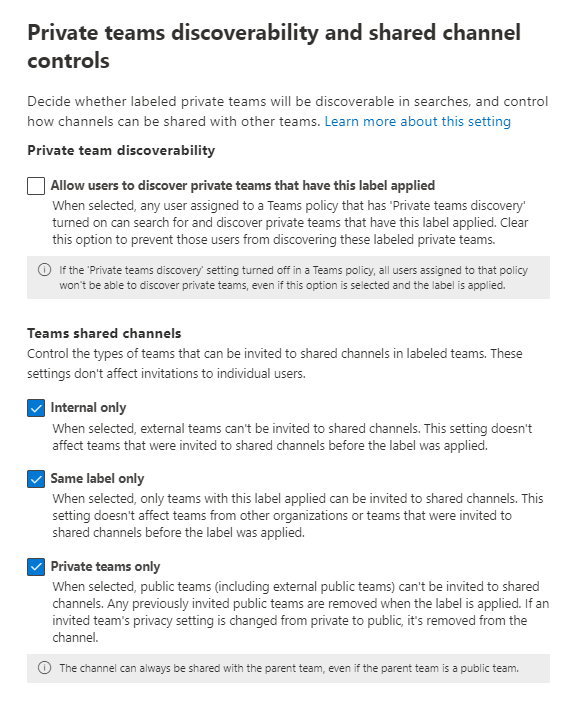
On the privacy perspective, we previously saw the option to set a Group to private or public. When a Team is private, it can still be discoverable from the “join a Team” option in Teams.
Finally, the Teams shared channel settings have a few options available. Using these settings we can control the Shared Channel behaviour of a specific Team:
- Internal only – This prevents Shared Channels from being shared externally. This is useful if you use B2B direct connect to share channels externally.
- Same label only – This prevents channels from being shared with Teams that don’t have the same label applied. This is useful if you have labels to define Teams that belong to particular topics.
- Private teams only – This one makes a lot of sense, if you have a sensitive Team there are very few cases where you would want to share a channel with a public Team. I’m sure they exist but this setting allows you to prevent this for sensitive Teams.
Summary
Labelling for Groups and sites has improved slowly but surely over time. The features available now are a big improvement on the last time I wrote about this and I’m sure over time more will be added. Until then, I don’t see any reason you wouldn’t want to create labels for at least some of you Groups and sites to get some control and standardisation over the configuration.
 Sean McAvinue