

Reporting on Multiple Aspects of Your Teams Environment
Teams has a lot of different components that dictate who has access to specific Teams and the data in them. For example, a Team can have a regular channel, open to eveyone on the Team. It can also have private and shared channels which have their own access lists. To help report on the different levels of access in Teams, I have created a report (available on GitHub) which breaks this down into a CSV file.
Requirements
The requirements for the script are straightforward, you need the Microsoft Graph PowerShell SDK. The SDK can be installed with the following cmdlet:
Install-Module Microsoft.Graph
If you already have the module, you should always check if updates are available with the following cmdlet:
Update-Module Microsoft.Graph
Outside of having the SDK installed, you will also need to be able to run with the following delegated permission scopes:
- Group.Read.All
- ChannelMember.Read.All
Report Logic
The report follows the below logic:
- Retreives all Teams in the tenant by using the Get-MgGroup cmdlet
- Loops through each Team and gets the following details:
- List of the Team Owners
- List of the Team Members
- The department of the first Team owner (To link the Team to a depatment)
- List of all standard channels in the Team
- List of all Private channels in the Team
- List of all Shared channels in the Team
- It the loops through each Private and Shared channel and returns the owners of each in the same field
Report Outputs
Figure 1 below shows the first half of the report outputs containing the list of Teams, the department of the first owner (I set my department to “Finance” for this example) and the Team members and owners.
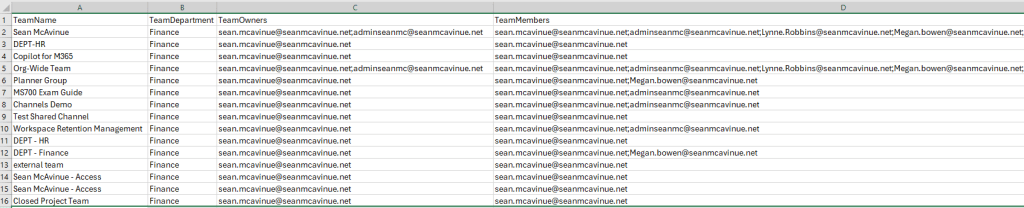
The second half of the report lists all channels of each type in the Team. It also shows the owners of any Shared or Private channels in the Team.

By running this report you get a great breakdown of the structure and ownership / access for each Team. This information is difficult to get in bulk from the Teams Admin Center so it’s useful to pull it all together with a quick report.
I’ve included the full code for the report below and it’s also available from GitHub at the link at the top of the page!
Connect-MgGraph -Scopes "Group.Read.All ChannelMember.Read.All"

$Date = (get-date).tostring('yyyy-MM-dd_HH-mm-ss')
$Teams = Get-MgGroup -Filter "resourceProvisioningOptions/Any(x:x eq 'Team')" -All
$i = 0
Foreach ($Team in $Teams) {
    $i++
    write-progress -activity "Processing Teams" -status "Processing Team $i of $($Teams.Count)" -percentcomplete (($i / $Teams.Count) * 100)


    [array]$TeamOwners = Get-MgGroupOwner -GroupId $Team.Id
    [array]$TeamMembers = Get-MgGroupMember -GroupId $Team.Id
    $Department = (Get-MgUser -UserId $TeamOwners[0].id -Select department).department
    $TeamChannels = (Get-MgTeamChannel -TeamId $Team.Id -Filter "membershipType eq 'standard'").DisplayName -join ';'
    [array]$TeamPrivateChannels = Get-MgTeamChannel -TeamId $Team.Id -Filter "membershipType eq 'private'"
    [array]$TeamSharedChannels = Get-MgTeamChannel -TeamId $Team.Id -Filter "membershipType eq 'shared'"

    $TeamPrivateChannelOutput = @()
    $TeamSharedChannelOutput = @()

    foreach($channel in $TeamPrivateChannels){

        [array]$Owners = Get-MgTeamChannelMember -TeamId $Team.Id -ChannelId $channel.Id | ?{$_.roles -like "*Owner*"}
        $OwnersOutput = $Channel.DisplayName + "- Owners: (" + ($Owners.DisplayName -join ';') + ") "
        $TeamPrivateChannelOutput += $OwnersOutput
    }

    foreach($channel in $TeamSharedChannels){

        [array]$Owners = Get-MgTeamChannelMember -TeamId $Team.Id -ChannelId $channel.Id | ?{$_.roles -like "*Owner*"}
        $OwnersOutput = $Channel.DisplayName + "- Owners: (" + ($Owners.DisplayName -join ';') + ") "
        $TeamSharedChannelOutput += $OwnersOutput
    }

    ##Create a new Object to store results
    $OutputObject = [PSCustomObject]@{
        TeamName = $Team.DisplayName
        TeamDepartment = $Department
        TeamOwners = $TeamOwners.AdditionalProperties.mail -join ';'
        TeamMembers = $TeamMembers.AdditionalProperties.mail -join ';'
        TeamChannels = $TeamChannels
        TeamPrivateChannels = $TeamPrivateChannelOutput -join ';'
        TeamSharedChannels = $TeamSharedChannelOutput -join ';'
    }

    ##Export Object to CSV

    $OutputObject | export-csv -Path "C:\temp\$($Date)TeamsDetailsReport.csv" -NoTypeInformation -Append
}
Summary
This is another case where a relativly simple PowerShell script can really add value and save you tonnes of time. Gathering this information manually would take hours, even in a modestly sized tenant. The beauty of this report is that you can rerun it as needed to monitor for change.
 Sean McAvinue