

Make Your Code More Stable By Taking Action On Errors
In the previous article in this series we looked at catching errors when they happen in our scripts. For the most part, when we got an error we stopped the code running and did something to account for the problem like writing out the exception message. Errors returned from cmdlets don’t always need to stop things running though.
Rather than stopping the script, ideally we should anticipate the otential error and build logic to account for it. In this article we look at some ways to incorporate error handling into our code and using it to keep things on track.
Error Handling in Loops
Lets take the example where we want to parse through a list of usernames to get the display name of the user accounts. Typically we could have an array of objects to loop through, and we perform a task (in this case, Get-MgUser) within the body of the loop. An example of what this would look like without any error handling is shown below:
$users = @('sean.mcavinue@seanmcavinue.net', 'doesnotexists@seanmcavinue.net','adminseanmc@seanmcavinue.net')

foreach($user in $users){
    $UserObject = Get-MgUser -UserId $user

    Write-Host "The Display Name for $user is: $($UserObject.DisplayName)"
}
As we see in Figure 1, the output here is a bit messy.

If we add some error handling as we saw in the last article to this example, we can ensure that the loop keeps going and gives us the information we want while ensuring the errors are catered for.
$users = @('sean.mcavinue@seanmcavinue.net', 'doesnotexists@seanmcavinue.net','adminseanmc@seanmcavinue.net')

foreach($user in $users){

    Try{
    $UserObject = Get-MgUser -UserId $user -ErrorAction Stop
    Write-Host "The Display Name for $user is: $($UserObject.DisplayName)"
    }Catch{
        Write-Host "Unable to get user account $user, exception was: $($_.Exception.Message)"
    }
}
Running with the errors handled and a user fiendly message returned to flag the error looks a lot better (Figure 2).

Running loops without managing errors can lead to unexpected behaviour so it’s always worthwhile to ensure you are building in appropriate logic to ensure your script is robust enough to encounter errors without breaking.
Incorporating Logging
Using the same logic as above, we can combine this with a Log Function like the one I posted previously. Rather than writing output to a screen which requires the script to be monitored as it runs, we maintain a log capturing exactly what happened. This is extreamly useful for long running scripts:
$users = @('sean.mcavinue@seanmcavinue.net', 'doesnotexists@seanmcavinue.net','adminseanmc@seanmcavinue.net')

foreach($user in $users){

    Try{
    $UserObject = Get-MgUser -UserId $user -ErrorAction Stop
    Write-Log -Message "The Display Name for $user is: $($UserObject.DisplayName)" -LogFilePath c:\temp\Logfile.log -LogType "Success" -DebugEnabled
    }Catch{
        Write-Log -Message "Unable to get user account $user, exception was: $($_.Exception.Message)" -LogFilePath c:\temp\Logfile.log -LogType "Error" -DebugEnabled
    }
}
In the example we have three users to check, but imagine if we had a few thousand. We probably don’t want to sit watching the screen as the script executes. Likewise, writing errors to the screen doesn’t keep a record of the errors long term. When we run the code above, incorporating the log function, we get our script execution details saved to our log file, complete with errors to review later (Figure 3).

If You Don’t Succeed, Try Again!
There are times when we want to make sure that a task completes successfully, regardless of anything unexpected that may arise. Rather than us supplying an array of user accounts as we did in the previous example, what if we were asking the user to input the user name? We don’t know when we create the script what they might enter, or if they will mistype the name.
We can run this similar to our previous examples by telling the user there is an error as shown below:
$user = Read-Host -Prompt "Enter the username you want to check"

Try {
    $UserObject = Get-MgUser -UserId $user -ErrorAction Stop
    Write-Host "The Display Name for $user is: $($UserObject.DisplayName)"
}
Catch {
    Write-Host "Unable to get user account $user, exception was: $($_.Exception.Message)"
}
Here, if the user puts in a bad username, they will be told and the script will exit as shown in Figure 4.

This approach is fine in some cases but typos can be quite common and we generally don’t want to exit the entire script in the event of a typo. By adding a Do/While loop around our code with some extra logic, we can repeatedly prompt the user until they type in the correct username. This provides a much better user experience:
Do {
    $user = Read-Host -Prompt "Enter the username you want to check"

    Try {
        $UserObject = Get-MgUser -UserId $user -ErrorAction Stop
        Write-Host "The Display Name for $user is: $($UserObject.DisplayName)"
        $Validuser = $true
    }
    Catch {
        Write-Host "Unable to get user account $user, exception was: $($_.Exception.Message)"
        $Validuser = $false
    }

}until($validUser)
In this example, we use the Boolean (True or False) $ValidUser to determine if the result was successful. This allows us to continiously prompt until we get a valid response. This is a much more user-friendly way of accounting for human error in input. The Do/While loop ensures that we keep prompting until we get the result as shown in Figure 5.

Setting a Timer
Retrying on error is a great way to get around potential issues with typos and bad inputs. It’s also particlaly good when waiting for replication in Microsoft 365. One issue is that if something unexpected happens (for example in Figure 6 below where I have not connected to the Microsoft Graph yet), The loop will continue forever a it’s not possible to get a valid response!

To account for these cases, we can get a bit more fancy and add a timer to our loops, telling them to exit if a specific period of time elapses. In the below code, I’ve added a timer:
$Timer = [System.Diagnostics.Stopwatch]::StartNew()
$RanOutOfTime = $False
Do {
    $user = Read-Host -Prompt "Enter the username you want to check"
    Try {
        $UserObject = Get-MgUser -UserId $user -ErrorAction Stop
        Write-Host "The Display Name for $user is: $($UserObject.DisplayName)"
        $Validuser = $true
    }
    Catch {
        Write-Host "Unable to get user account $user, exception was: $($_.Exception.Message)"
        Write-Host "Please try again."
        $Validuser = $false
    }

    if($timer.Elapsed.Minutes -ge 1){
        $RanOutOfTime = $True
        Write-Host "Sorry, you ran out of time!"
    }
}until($validUser -or $RanOutOfTime)

$Timer.Stop()
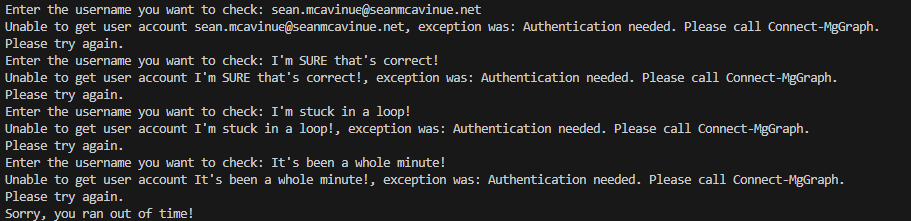
In this example, I start a timer before the loop, and introduce the Boolean value $RanOutOfTime. If the timer goes above one minute, the $RanOutOfTime value is set to true. I’ve also updated the ‘Until’ condition to tell the loop to exit if the user is valid OR the user ran out of time. We see this running in Figure 7.
Summary
In this article we looked at some different ways you can make your scripts more robust by adding error handling. We can use Try/Catch, loops and timers to build in ways to manage the unexpeted. While I generally focus on Microsoft 365 topics, the information here is not just for Microsoft 365 administrators and applies to anyone working with PowerShell who want to level up their scripts.
 Sean McAvinue