

Meeting Recordings Are Now More Common That Ever
Teams meeting recordings are nothing new, they have been available a long time. There has been a change in the past year in the amount of meetings that get recorded though. This change is mainly driven by Copilot for Microsoft 365 and the meeting summerization and actions functionality. The most commonly used feature in most of the organizations I work with who are adopting Copilot is this meeting functionality.
The key requirement for Copilot in meetings is to enable recording on the meeting, after all, Copilot can’t summerize if it doesn’t have the data available. This causes a challenge to some organizations who either blocked meeting recordings entirely, or who never managed recordings and don’t have a corporate policy around the use of recordings.
For many of these organizations, meeting recordings happened infrequently and generally this would only be when there was a specific agreement or purpose for the recording, and there may have been an informal check with participants before recording was enabled.
With Copilot making Teams meeting recordings much more prevalent, organizations are forced to implement some governance around the recording process. Luckily (and probably driven by Copilot), Teams now supports requesting explicit consent for meeting recordings. In this article I’ll go through what it looks like and how you enable it.
Enabling Explicit Consent
Explicit consent for Teams meeting recordings and transcripts is enabled through the Teams meeting policy – a Teams administrator enables the option for a specific meeting poilicy. The option is not available in the GUI which makes it easy to miss when configuring your meeting settings. To enable it, you need to use Microsoft Teams PowerShell.
To start, you’ll need the Microsoft Teams PowerShell module. If you don’t already have it, it can be installed using the below cmdlet:
Install-Module MicrosoftTeams
Once it’s installed, you can connect to Microsoft Teams PowerShell as a Teams Administrator using the following cmdlet and signing in:
Connect-MicrosoftTeams
If you’ve signed in successfully, you can then list all your meeting policies as shown in Figure 1 using:
Get-CsTeamsMeetingPolicy | Select Identity

From this list, choose the meeting policy you want to modify, in this example I will use the Global policy but you may want to test this on a small group first. You can first check the current value of the ExplicitRecordingConsent option by running:
Get-CsTeamsMeetingPolicy -Identity <Your Policy> | Select *Consent*
When you want to change the setting, run:
Set-CsTeamsMeetingPolicy -Identity <Your Policy> -ExplicitRecordingConsent "Enabled"
You can also rerun the “Get-CsTeamsMeetingPolicy” cmdlet to check the setting was enabled. In Figure 2, I check the setting, then enable it and check again to confirm.

That’s all there is to it, the policy is not enabled and in the next few minutes, consent will be required in recorded meetings.
Quick Meeting Policy Refresher
The meeting policy impacts meetings that have been set up by someone targeted by the meeting policy. So if you enabled the policy for one user, any users who join their meetings must consent, not just them. Equally, the user in the policy will not be asked to consent to a meeting set up by someone outside the policy. It’s also worth mentioning that consent also applied to external participants of meetings, not just your internal users.
Meeting Experience
With the policy enabled, let’s take a look at the experience in the meeting. When recording or transcription (or both) are enabled in a meeting, the user enabling it will see the warning shown in Figure 3, letting them know all participants will have their mic, camera and content sharing disabled until they agree to recording.

On the participant end, all users will have their camera, mic, and any content sharing disabled and see the notification shown in Figure 4.
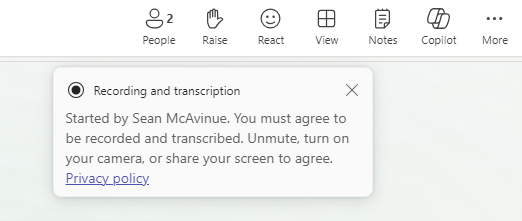
When a participant then enables their mic, camera or shares content, they will be prompted to accept the use of their audio and video in the recording as shown in Figure 5.
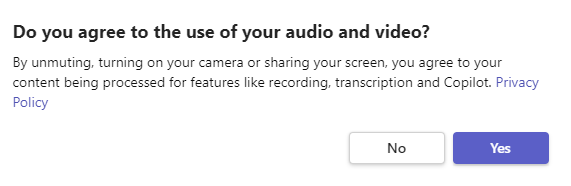
This is the same process for both recordings and transcriptions and applies to all users in the meeting. A participant can still see and hear content that is being said / shared on the meeting, but cannot participate themselves until they consent.
Summary
With more meetings being recorded now than ever, it’s important to have a corporate policy around the use of meeting recordings. Requiring explicit consent is a great way to enforce some level of governance and protection for meeting participant but should also be coupled with a documented usage policy for meeting recordings.
There are very few downsides to enabling explicit consent for recordings so it’s absolutly something I would recommend considering in your Teams deployment.
 Sean McAvinue