

Copilot for Microsoft 365 Driving Better Governance
One of the biggest impacts Copilot for Microsoft 365 has had on Organizations, besides the productivity enhancements is that it has driven a renewed focus on governance within SharePoint Online. A common challenge for customers planning to deploy Copilot is a lack of insight into how information is shared across the organization.
SharePoint Online (and by extension Microsoft Teams) make it very easy to share content, it’s kind of the whole point. An issue here is that over time, many organizations haven’t controlled how this sharing is done, and are now trying to control it before deploying Copilot. It’s not that Copilot will give anyone access to data they didn’t already, but it makes it a whole lot easier for them to find and use the content. We’ve also seen a lot of talk recently about the use of Copilot by bad actors to surface information in a breached account, also leading organizations to adopt a least privilege model for data access.
In this article I take a look at ways we can control the sharing of information within SharePoint sites, both the familier methods such as preventing external sharing, and also the lesser known methods such as preventing org-wide links.
Prevent “Anyone” Links
“Anyone” links in SharePoint Online are unauthenticated, anonymous access sharing links. Essentially, anyone, internal or external, with the link can access a document shared in this manner without authenticating. Outside of some very specific examples (mainly within Education tenants), I see very few customers with a need for this type of anonymous sharing.
Unless you fall into one of the few organizations with a need for this type of sharing, I recommend disabling this as a first step to controlling data sharing. From the SharePoint admin center, make sure your sharing slider is at a minimum, below the “Anyone” setting as shown in Figure 1.

Modifying this setting will in effect disable the ability for any user to generate an anonymous link, also disabling any existing anonymous links that may have been created. There’s no real reason not to disable this, unless, as I mentioned, you are one of the few organizations with this requirement.
Manage External Sharing
Next up, is external sharing. External Sharing is an amazing way to collaborate with customers, vendors and partners. I see many organizations who want to disable external sharing as it’s seen as a risk, meanwhile, they allow data to be sent as email attachments which is arguably worse as access can’t be revoked.
While I won’t go into the full details here (as it’s a much bigger topic), a strong SharePoint and Teams architecture should be supported by effective data classification labels and Data Loss Prevention policies. That being said, assuming we have these controls in place, we may still want to apply an additional layer of governance.
You can control external sharing though, and limit risk on particular sites and Teams by configuring the site-specific sharing settings. For example, you may have a Finance Team where the contents should never be shared externally. This can be limited on the site level by opening the sharing settings of the site from the SharePoint admin center and setting the sharing policy to “Only people in your organization” as shown in Figure 2.
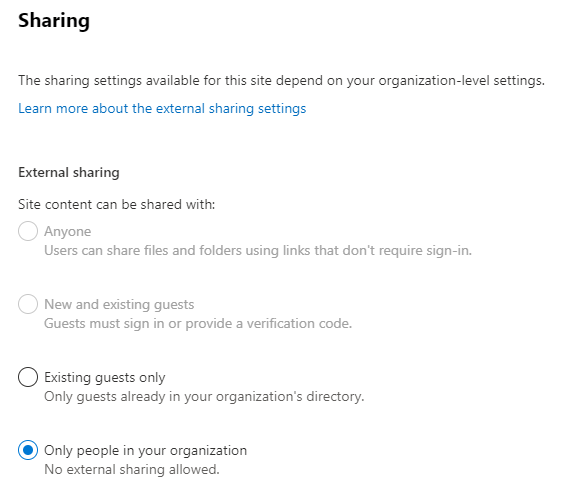
In this scenario, you disable external sharing for the specific sites you want to control, while not impacting others. This is controlled more efficiently by deploying sensitivity labels for sites and Teams and configuring the setting on the labels as I outlined in a previous article.
Prevent Org-Wide Links
Now, on to some lesser known controls. Something that I hear from customers is that even when sharing is locked fown to “Only people in your organization”, they still want to restrict the use of Org-Wide links. Org-Wide links are links that will allow anyone in your oganization to access the file or folder that has been shared.
I wrote about org-wide links in my previous article on how Copilot for Microsoft 365 accesses data and mentioned that these links may be a problem for organizations when it comes to understanding which users have access to specific files. An org-wide link can be generated and sent in a company wide email and then anyone who clicks that link will gain access.
This is fine for many sites but controlling the use of these links is important for very sensitive areas. Org-wide links are also generally left as the default link type, leading users to mistakenly create them. While the default link type can be changed, we can again, control this on a site level.
To disable org-wide links on a specific SharePoint site, we can use PnP PowerShell to run the cmdlets below:
Connect-PnPOnline -Url "<SiteURL>" -Interactive
Set-PnPSite -DisableCompanyWideSharingLinks "true"
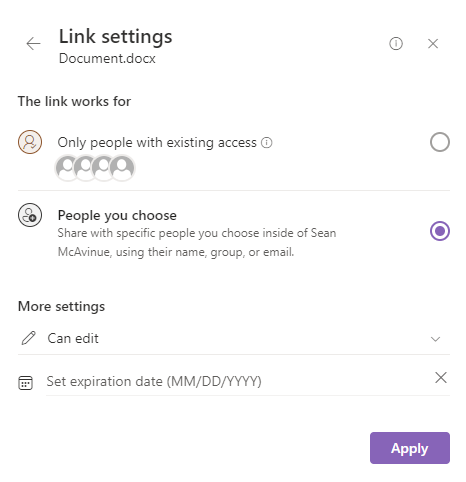
When a site has this setting updated, users will no longer see the ability to create org-wide links when sharing files as shown in Figure 3.
Prevent Non-Owner Sharing
The last piece I recommend looking at, particularly for very sensitive sites, is the ability to prevent users who aren’t site owners from sharing files and folders. Many organizations have sensitive sites and Teams which contain a large amount of members. Out-of-the-box any of these members can share any content within these sites.
Again, focusing on highly-sensitive sites, this might not be desirable. Luckily, this can also be disabled, with sharing of content within a site being limited to the site owners. to disable this setting, use PnP PowerShell to run the below cmdlets:
Connect-PnPOnline -Url "<SiteURL>" -Interactive
Set-PnPSite -DisableSharingForNonOwners
Once this is done, non-owners of the site / Team will no longer have the ability to share files and folders.
Summary
In this article I’ve listed a few ways you can apply a layer of control to sharing within SharePoint Online and Teams. There are other features available within SharePoint Online Advanced Management which I will discuss separatly but even with the standard licensing, you have a lot of control available. when preparing for Copilot for Microsoft 365, or even just trying to get control of the data flows within SharePoint and Teams, the items I discussed here are avilable out-of-the-box and can greatly enhance the governance in your environment.
 Sean McAvinue