

Quickly Summerize Guest Access to You Resources
Guest access in Microsoft 365 is a fantastic was to securly bring external participants into your environment to access resources. Guest access can also provide a governance challenge in larger environments. The removal of stale Guest accounts is something that all organizations should have in their processes.
For organizations with Microsoft Entra P2 licensing, Access Reviews are a nice way to manage stale Guest accounts. For organizations that don’t have P2 licensing, we need to be a bit more creative. The first challenge is identifying which Groups or Teams have Guest members.
To help organizations to get a quick list of Groups with Guest members, I have built a PowerShell script using the Microsoft Graph PowerShell SDK to report on Guest access in Groups and Teams. In this article I’ll go through how the script works and how you can run it.
Script Structure
The script follows a simple structure outlined below:
- Connect to the Microsoft Graph
- List all Groups in the tenant
- Loop through each Groups and for each, do the following:
- Get all members
- Filter the members for Guest users
- Add Groups containing Guests to an output object
- Finally, Export all Groups with Guests to CSV
Key Components
There are some key components to this script to be aware of. Firstly, it uses the Microsoft Graph PowerShell SDK, so you’ll need that installed. If you don’t already have it installed, it can be installed with the following cmdlet:
Install-Module Microsoft.Graph
Next, we also need to define the output path for the CSV file. This is located on line 8 of the script in the below code and can be customized to your needs. Make sure when you are specifying a location, that the folder exists or you will get an error.
$Outputfile = "c:\temp\GuestReport.csv"
Error Handling
I recently wrote about how you can add error handling to your code to level up your PowerShell scripts. To help illustrate this, I’ve added some basic error handling to this script too. You can see in the initial Graph connection for example, we have a Try/Catch block to manage any issues that arise and exist the script if we run into an error connecting.
Try{
    Connect-MgGraph -Scopes "Group.Read.All","User.Read.All"
    Write-Host "Connected to the Microsoft Graph"
}
Catch{
    Write-Host "Error connecting to Microsoft Graph. Please try again."
    Write-Host $_.Exception.Message
    Exit
}
Similarly, it’s very important to the script that we can retreive all Groups in the tenant, I’ve also included a Try/Catch here to exit the script if any errors occur.
Try{
    #Get all Groups
    [array]$Groups = Get-MgGroup -All
    Write-Host "Groups found in Tenant: $($Teams.Count)"
}
Catch{
    Write-Host "Error getting Groups. Please try again."
    Write-Host $_.Exception.Message
    Exit
}
Running the Script
To run the script, first make sure you have the Microsoft.Graph PowerShell module installed and then download the script top your local machine. From here, simply run the script in PowerShell 7 (I strongly recommend PowerShell 7 for this script) and sign in to the Graph if prompted. The script will output to the screen as it runs as shown in Figure 1 below.
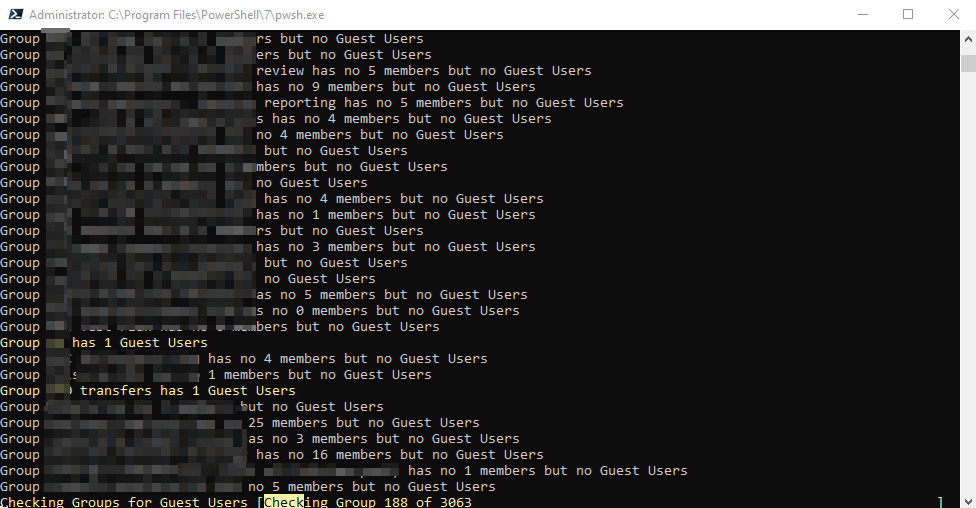
The script is quite quick to run, in my environment with around 3000 Groups it took less than 10 minutes, obviously larger environments may take more time. If you are the type to watch the console output, any Groups with Guests will be written to the screen in yellow.
Once the script completes, the output file will be saved to the location you specified, by default this is “c:\temp\GuestReport.csv”.
Opening the file we see it contains the following columns:
- GroupName: The name of the Group
- GroupID: The ID of the Group
- GuestCount: The number of Guests in the Group
- GuestList: A semi-colon separated list of the user names for the Guest in the Group
The CSV contains the complete list of Groups with Guest users in your organization and can be filteres in column D for the name of a specific Guest if you want to break it down further as shown in Figure 2.

Summary
This script is a nice, quick way to get a report containing the information you need to assess Guest access to your Microsoft 365 Groups and Teams. The full script is available on GitHub here along with many other similar examples. Feel free to make your own adjustments and make sure to share them with the community!
 Sean McAvinue