

Different Methods With Mixed Results
I’ll start this article by saying for 99% of users, disabling OneDrive is not recommended. OneDrive is fundamental to many of the best apps and functions available in Microsoft 365. That being said, there are cases where disabling OneDrive is desirable. For example, you may not want contractors to access personal storage while still prioviding them with access to SharePoint Online. Another case is where you are rolling out Microsoft 365 services and aren’t ready for OneDrive yet.
There are a few ways we can disable or block OneDrive for users in our Microsoft 365 environment. Each has it’s own nuances and complexities to understand. In this article I’ll go through the three main ways to block OneDrive in your Microsoft 365 organization.
Honourable Mention: Conditional Access
Ok, technically this is a fourth way, blocking access to OneDrive through Conditional Access. I don’t really recommend going down this road as there are some important limitations to understand. For example, to block OneDrive through Conditional Access you need to block the Office 365 SharePoint Online app with a Conditional Access policy similar to the one shown in Figure 1.
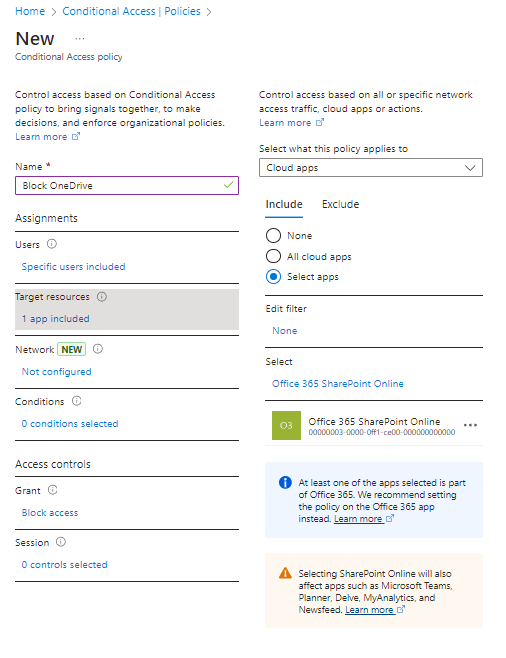
This presents our first problem, we can’t specifically block OneDrive through Conditional Access, we are forced to block all of SharePoint. Adding to this problem, blocking SharePoint has the knock on effect of blocking Teams. So we start out trying to block OneDrive and as a result, block SharePoint AND Teams. Users will see the message shown in Figure 2 when accessing any of these services.
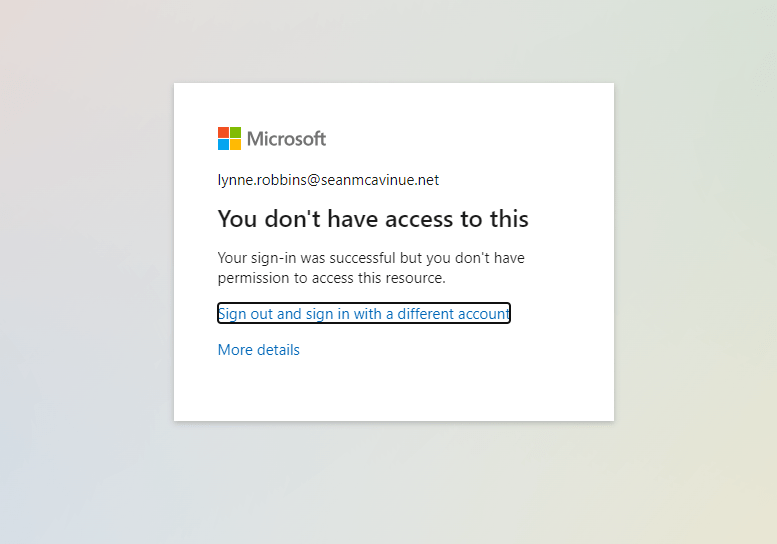
Particularly for an initial deployment of Microsoft 365, many organizations may want to deploy the communication / messaging aspects of Teams before the deploy the file sharing functionality. Unfortunatly, this isn’t possible through Conditional Access as the Teams app is also blocked.
Don’t Assign The License
The next option that some organizations look to is to make sure the license that enables OneDrive is not assigned. In this scenario, the license for Office 365 is assigned (M365 or O365 licenses for example) but the app for SharePoint is disabled in the assignment (Figure 3). Similar to Conditional Access, there is no “OneDrive” license and OneDrive licensing relies on the SharePoint Online license plan.

In order to do this, you also need to unassign the “Office for the Web” license plan for the user as SharePoint is required for Office on the Web. The result of not assigning the license is that within the Office 365 portal, users will not see the SharePoint or OneDrive apps available in the app launcher. Similar to Conditional Access, we also need to block SharePoint to block OneDrive in this way.
Within Teams, things get a little bit more complicated. If the user has never had OneDrive created then things work pretty well. A user sharing a file in a Teams chat will get the message in Figure 4 telling them they don’t have OneDrive.

Interestingly, even without the SharePoint Online license assigned, the file tab within Teams works and users can even access the files location of a Team. This is true for any SharePoint Team site the user is a member of also.
If, however, the user was previously given a OneDrive license and had a OneDrive site provisioned, the behaviour is different. If a OneDrive is already provisioned for the user, removing the license will remove the OneDrive and SharePoint icons from the users app launcher, but won’t remove access for the user to their OneDrive site. If the user has bookmarked the OneDrive site then they can still access without issue.
Another potential problem is within Teams. A user who has a OneDrive site provisioned and has had their license removed, can still send files in Teams chats and access OneDrive. Not assigning a license is fine if you haven’t previously made OneDrive available but the main issues with this method are:
- You cannot block just OneDrive, you also need to remove the SharePoint license
- Users who already have OneDrive sites provisioned can still use various functions of OneDrive
Prevent OneDrive Provisioning
Similar to the previous method, this method looks to prevent the provisioning of OneDrive sites for users. With this method though, you don’t need to prevent SharePoint also. To prevent the provisioning of OneDrive for users, navigate to the SharePoint Online admin center and navigate to “More Features” -> “User Profiles”. From this page, select “Manage user permissions” to open the permissions page. You will see an existing permission entry for “Everyone except external users”. This is the permission entry that allows users to create OneDrive sites. To prevent specific users from provisioning OneDrive, either add the users, or a group to the permissions list and remove the permission to “Create personal site” as shown in Figure 5.
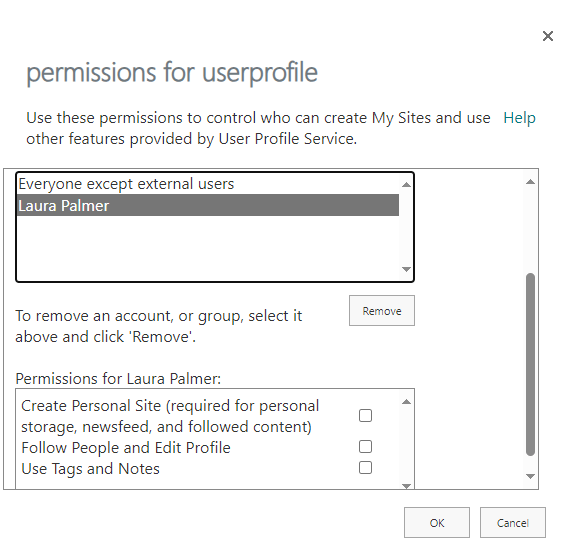
With this permission removed, the users listed will not be able to create OneDrive sites for themselves, even when given the appropriate license. If users try to open the OneDrive app, they will not have a OneDrive provisioned for them.
The behaviour in Teams is similar to the previous example where the user will not be able to share files in chats as they don’t have OneDrive. They will still be able to receive shares as they come from other users OneDrives.
A benfit of this method is that you can manually provision OneDrive sites for users using the SharePoint Online Management Shell with the following cmdlet:
Request-SPOPersonalSite -UserEmails <Username@domain.com>
If you are in a situation where you are rolling out OneDrive for users, this is a great way to manage that rollout.
SharePoint Premium Block OneDrive Access
The lasst method involves SharePoint Premium licensing. As part of SharePoint Premium you can restrict OneDrive access to a specific security group. This is configured from the SharePoint Online admin center under “Policies” -> “Access Control” -> “OneDrive Access Restriction”. From here, configure a security group as shown in Figure 6.

Once this policy is configured, any user not in the group specified will get the error shown in Figure 7 when they attempt to access OneDrive content (including their own).
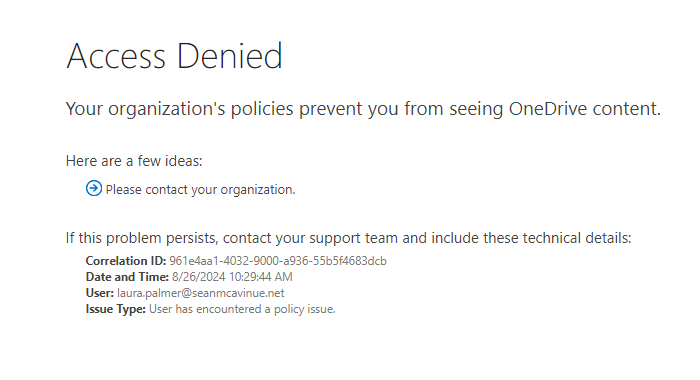
A similar error is shown when accessing OneDrive content throug Teams (Figure 8).
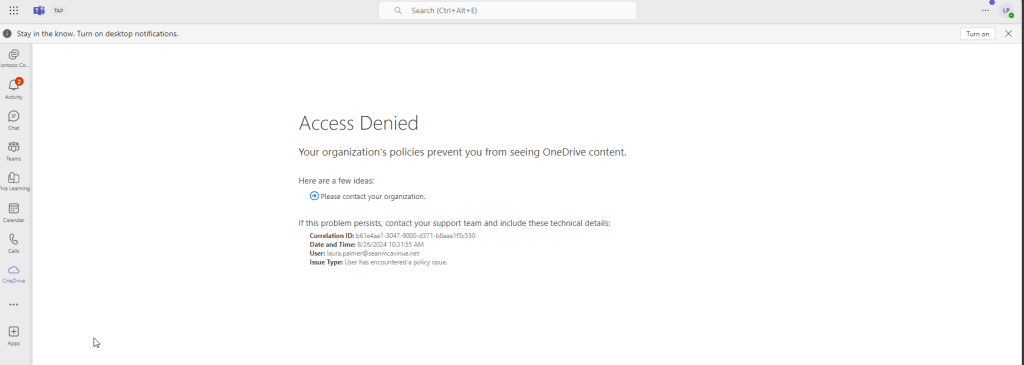
When sending a file in a chat, the message is a bit more generix (Figure 9).

Overall, this may be the most efficient way to block OneDrive access but comes at an additional cost. I don’t think this feature is the one you purchase SharePoint premium for, but if you have it, it’s a nice addition.
Multiple Options, Depending on your Requirements
Here I’ve looked at a number of options for preventing OneDrive access in your organization. Depending on your requirements the correct option to choose could be different. For example, if you are planning on rolling out OneDrive steadily, then controling OneDrive provisioning permissions is probably the right solution for you. If you want to completly block OneDrive and SharePoint, remove the license. If you have a more nuanced requirement (and already own SharePoint Premium licensing), perhaps OneDrive access restrictions will help you make use of the premium licensing and provide a nice solution at the same time.
A typical consultant answer to the question is “it depends”. The reason for this is often, it really does come down to the details of your requirement. I honestly don’t think there are many cases where you would want to block OneDrive for users but it does come up with my customers from time to time. Hopefully the options outlined here will make that decision a bit easier!
 Sean McAvinue