

Small Changes To Help Improve Sharing Practices
I’ve been talking a lot with customers lately about SharePoint Online and Teams Governance. Mnat of these conversations have been driven by discussions around Copilot for Microsoft 365. I’ve also spoken at length about the perceived risk of Copilot for Microsoft 365 when it comes to exposing sensitive data.
It’s worth repeating here that Copilot for Microsoft 365 does not grant people access to any data they don’t already have. To understand more about how Copilot accesses data on a users behalf, check out my prvious article here.
A common theme across conversations I’ve had is that many organizations don’t really know who has access to what data. With SharePoint Online and Microsoft Teams, we tend to move away from an IT managed permissioning model and empower our data owners to manage access to their data. To be clear, I think this is a great thing, when done right, but can lead to some uncertainty when it comes to a tool like Copilot. If we don’t have solid practices in place to keep our environment tidy, we likely have a clean up to do before we’re confident that data isn’t overshared.
In this article, I look at the tools available within SharePoint Online (and by extension Teams) to set your environment up for success and minimize permissions sprawl. I’ll be looking here at ways to shape the sharing experience for users, while not specifically blocking any sharing. If you haven’t already, I recommend also checking out my previous article all about limiting sharing in SharePoint Online where I look at blocking sharing in specific scenarios.
Default Link Types
Default link types in SharePoint Online are an important, but often overlooked configuation. By default, links generated are the most permissive. For example, if you don’t disable “Anyone” links, then the default link generated when a user attempts to share is an “Anyone” link with write access. It’s important to review this setting and ensure you are comfortable with the configuration.
My recommended approach here is to configure the default links to be “Specific people” and “View” permissions. This can be controlled from the SharePoint admin center, located under “Policies” -> “Sharing” In Figure 1 for example, the settings dictate when a user shares a file or folder that the initial settings they will get require them to name individuals and update permissions if they want to allow the recipient to edit.
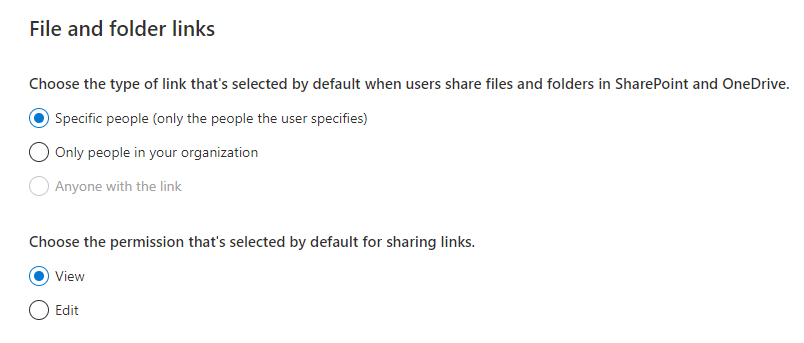
This configuration adds extra steps to the sharing process for users who want to grant edit permissions. You would be surprised how often I see even quite savvy users just accept the default settings because they need to generate a link. In this configuration, the decision to grant org-wide or write access needs to be a consious change in the sharing settings, minimizing risk of simple mistakes.
Implement Data Classification
Data Classification through Microsoft Purview is quite a large topic and something I won’t delve too far into here. It can also take quite a long time to work through and get to deployment. As I wrote previously, when looking at sensitivity labelling, keep it simple. Don’t let perfect get in the way of progress.
A simple group of labels to allow users to manually classify / reclassify data can go a long way to getting started. You can always add or update labels over time, but having a starting point is better than nothing. A relativly simple structure, with default labelling either through your label policy or on specific document libraries will, at a minimum, help your users to understand the types of data they are working with.
Like everything in this article, data classification requires a solid adoption, change management and training inititive to support users in adopting the technology.
Implement Data Loss Prevention
Data Loss Prevention (DLP) is another key aspect of Microsoft Purview that organizations can struggle to get off the ground. When it comes to external sharing, DLP controls what information can be shared and what information is prevented based on the contents of the document or email.
With all of the data types available from Microsoft and the ability to create your own using custom information types, trainable classifiers etc. Figuring out what exactly you want to block can take some time. An easy way to get off the group with DLP, is to prevent your most sensitive data from leaving the organization by looking at the sensitivity label assigned.
For example, if we have a label named “Highly-Confidential” which is used to protect the top-secret information in the organization, we can create a DLP policy to block the external sharting of any content marked with this label. Of course, there’s much more we can do with DLP but similar to sensitivity labels, getting started is half the battle.
Report on Sharing
Reporting is another key aspect of a well managed environment. A lot of the fear around Copilot deployments are driven by the fact that administrators didn’t know what invormation was shared and to where.
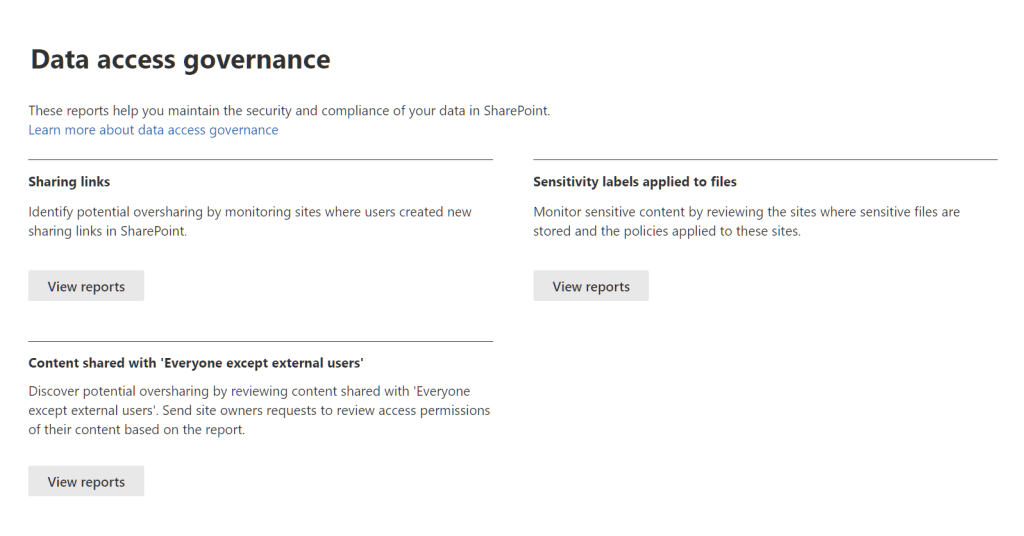
A recent addition from Microsoft on this front, as part of SharePoint Premium licensing is the data access governance reports. This is a group of reports to provide a lot of the information you need to know to understand sharing in your environment. The reports available (Shown in Figure 2) are:
- Sharing Links: Reports detailing the sharing links across all sites in the tenant
- Sensitivity Labels applied to files: A reporting detailing the application of sensitivity labels
- Content shared with ‘Everyone except external users’: A report showing any content shared with org-wide links
If you don’t have SharePoint Premium licensing, I’ve also shared previously a Copilot for Microsoft 365 Data Assessment Report which will tell you, per site the detail of sharing within the organization.
No matter the tool you use, understanding is half the battle when it comes to preparing for Copilot.
Training and Adoption
The most important aspect of anything I’ve spoken about in this article is the training and adoption of the technical solutions. The vast majority of people don’t want to overshare data or introduce risk, but many IT teams can focus on deploying the technology without bringing the people along that journey. Empowering users to get the most out of that platform while supporting a well managed environment is key to a successful deployment of any technology, but particularly valid when it comes to Microsoft 365.
Summary
In this article, I outlined some good practice, practical ways to maintain a SharePoint Online and Teams sharing configuration. As Copilot for Microsoft 365 is onboarded to more tenants every month, I’m sure many tenant administrators will be facing the challenges I mentioned above. Hopefully what I’ve detailed here will go some way towards helping organizations understand what they need to be thinking about when it comes to SharePoint Online and Teams sharing.
 Sean McAvinue